 Nourmio
What happens to a food photo when you log it in Nourmio?
See where Nourmio sends a food photo, what the service keeps after recognition, and how to add a diary entry with Cloud AI off.
Photo AI sends your food photo to Nourmio's server for recognition. Nourmio's privacy policy lists two processor routes: Google Gemini through RouterAI, or OpenAI. For a diary entry without a photo upload, turn Cloud AI off and use manual entry.
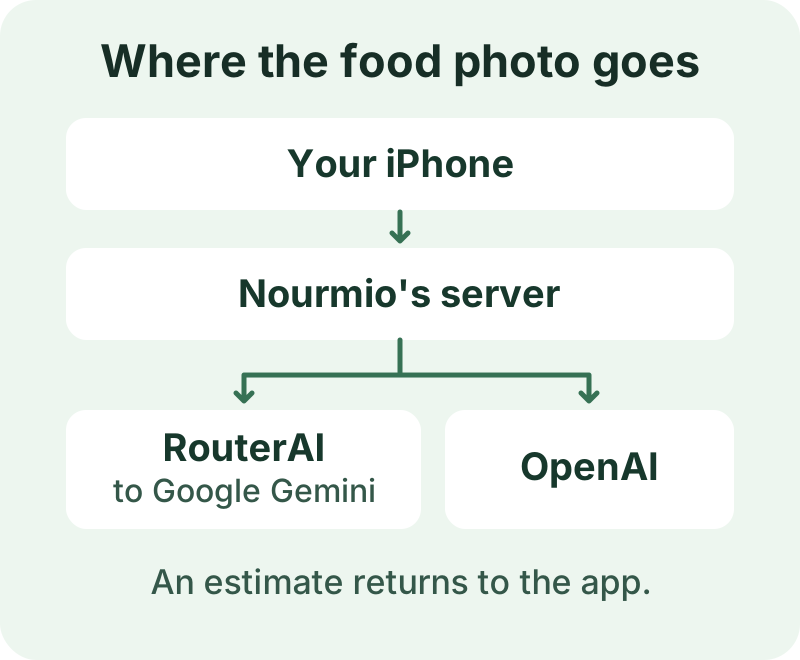
What goes with the photo
The Nourmio privacy policy says your account email, profile photo, and the rest of your diary stay out of the recognition request. The food photo itself goes to the processor. Check the frame before you take it if a receipt, an address, or someone else is in view.
The consent prompt in a November 8 recording named RouterAI, Google Gemini, and OpenAI. The Settings card in the iPhone recording named OpenAI. The current privacy policy describes both photo routes. The recording did not identify the processor that handled the photo.
What stays after the estimate comes back
Nourmio’s policy says its service does not keep the raw photos you send for recognition. It keeps an encrypted copy of the result for a 24-hour retry window so the app can recover the estimate after an interrupted connection. If you save the meal, the diary keeps the food entry separately.
Nourmio’s policy says it asks OpenAI to skip storing the response as application data. OpenAI’s data controls describe separate rules for abuse monitoring. For the other route, see the RouterAI privacy policy and Gemini API terms.
If you upload a profile photo, Nourmio stores a resized, encrypted copy for your account. The policy says the service leaves it out of AI recognition requests.
Log a food with Cloud AI off
Turn Cloud AI off in Settings to stop future cloud recognition. On Scan, choose Enter manually. Enter the food and nutrition values, continue to the portion form, and choose Add to Today. In our November 8 iPhone check, the manual entry appeared in Today after we switched Cloud AI off.
For a packaged food, use the serving and values on its label. If you choose Photo AI later, check the food and portion before you save the estimate.